Mar 10, 2026
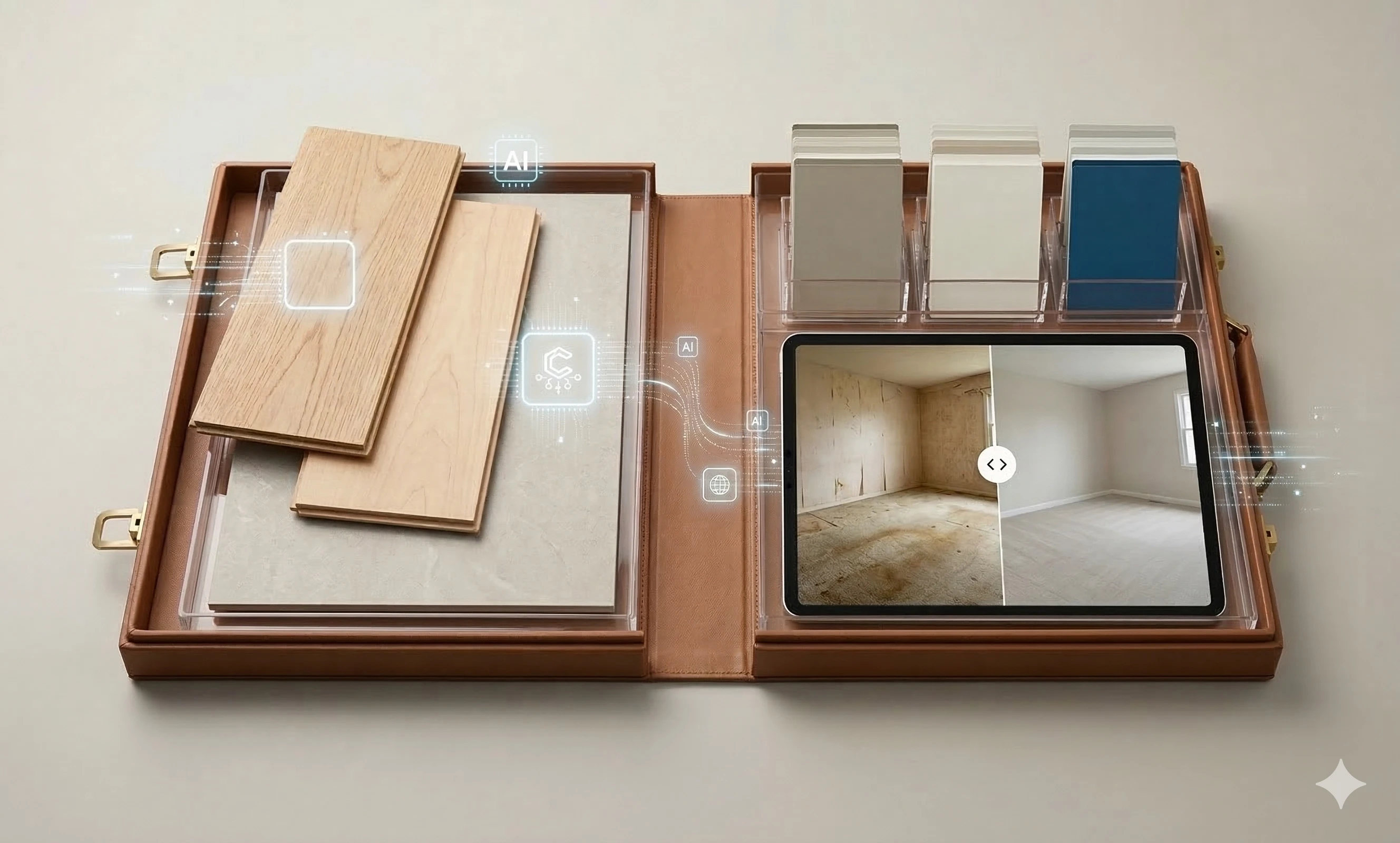
Ugly sells slowly. Stained 1990s carpet, peeling wallpaper, and jarring wall colors can stall even a well-priced home. You don’t need a contractor to change the story—you need transparent visualizations.
This guide shows you how to produce clearly labeled, side-by-side “virtual cosmetic updates” in under 60 seconds during a pre-listing appointment—so you can help sellers see the upside immediately while staying squarely within ethical and MLS rules. We’ll focus on flooring replacement and wall paint updates using a simple, no-design-skills workflow.
What counts as a virtual cosmetic update
Virtual cosmetic updates are clearly labeled visualizations of possible finishes—like new flooring or fresh paint—shown alongside the unedited original. They are not claims about the property’s current condition. The guiding principle is truthfulness. According to the National Association of REALTORS, practitioners must present a “true picture” in advertising and communications; see the 2026 Code of Ethics for context in Article 12 on truthful representation in marketing, referenced in the NAR 2026 Code of Ethics and Standards of Practice. MLSs often allow modified images when they are transparently disclosed and do not conceal defects; for example, Canopy MLS outlines disclosure and authenticity expectations in its guidance on digital images and virtual staging, summarized in Canopy MLS policy on altered images.
Your non-negotiables for compliance in this guide:
Add on-image text that reads “Virtually updated” to every edited file.
Show the original image side-by-side with the edited version. Keep originals archived.
Confirm your local board and MLS rules before posting edited images to the MLS.
Quick photo prep for convincing results
A convincing AI virtual renovation starts with a clear source photo. Spend a moment here—it pays off in realism.
Camera height around 4–5 feet to keep verticals straight, with the camera held level.
Choose a corner or doorway angle that shows two walls and plenty of floor.
Remove small rugs and obvious clutter so baseboards and floor boundaries are visible.
Use a high-resolution JPEG or PNG with even natural light; avoid blown-out windows if possible.
Step-by-step flooring replacement with AI virtual renovation
This workflow is designed for agents—not editors. You’ll pick one solid room photo, tap a new floor finish, and export a compliant side-by-side. This section also addresses a common search intent for virtual floor replacement real estate.
Pick a photo and upload
Choose a room photo where you can see a clean run of flooring and the baseboards. Upload it to your AI renovation tool.
Apply the new material automatically
Select a flooring material that fits your target buyers—e.g., light oak, natural maple, or modern large-format tile. In a modern AI workflow, you don’t need to think about angles or texture mapping. The system detects the room’s depth and the floor surface, then projects the new material so plank direction and scale read naturally.
Practical example: With Collov AI Material Overlay, you can upload a living room photo with worn carpet and preview a light oak look in seconds. The tool is designed to automatically recognize room depth and map the new finish to the floor surface while keeping architectural boundaries like baseboards clear and preserving natural lighting cues.
If the result looks uncertain, your fastest fix is usually to try a clearer photo (more visible baseboards, fewer obstructions) or run a second finish option.
Simple wall paint update that looks natural
Walls are easy to overdo. Keep it subtle so the update looks like a real paint job, not a synthetic overlay.
Tap a paint color and let the AI map it
Choose a market-friendly neutral—soft greige, warm white, or pale taupe. A good AI workflow automatically identifies wall surfaces and applies color while keeping trim, doors, and ceilings intact. It should also preserve the room’s natural light falloff so the space still looks dimensional.
Remember your compliance step: add the on-image “Virtually updated” label to the exported file and keep the unedited original.
Labeling and side-by-side presentation
You’ll increase trust when sellers see the untouched original next to your update. Build a simple Before and After panel and include on-image labels. Place “Before” on the original and “Virtually updated” on the edited image.
Many MLSs require this kind of clear disclosure; for a policy-style example, review the expectations outlined in the Canopy MLS policy on altered images and confirm specifics with your local MLS.
60-second QA before you show the seller
Run this quick pass on each edit to avoid awkward surprises.
Baseboards and trim continuity look clean, with corners aligned and no haloing.
Shadows and reflections feel consistent with window direction and furniture placement.
Material scale is proportionate to the room—no micro-planks or comically wide boards.
Perspective and horizon are natural; verticals aren’t leaning.
Color plausibility is intact; paint changes don’t crush light gradients.
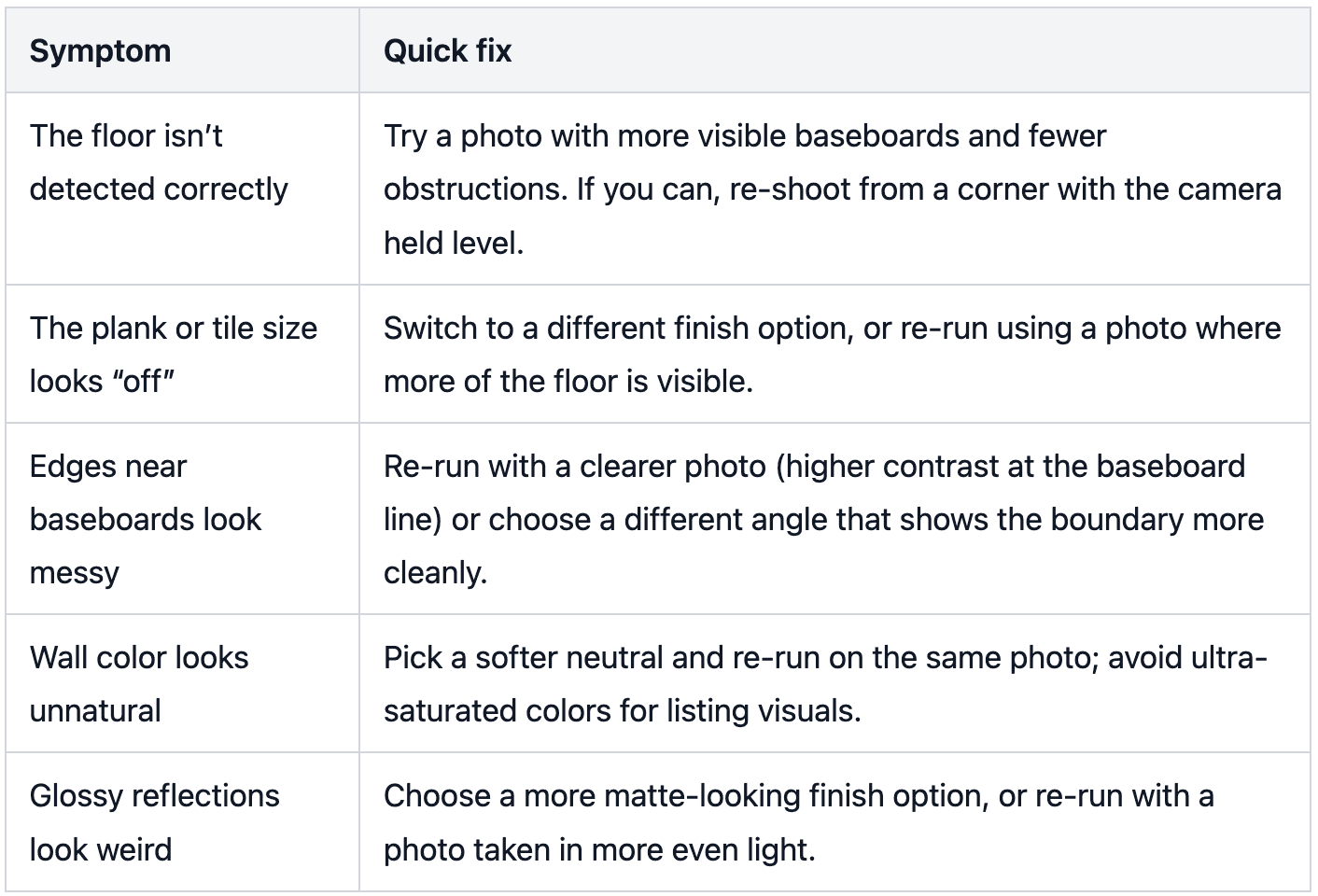
Fast fixes when something looks off
Put it to work in your pre-listing meeting
Run a tight, repeatable flow at the kitchen table: pull up one strong living area photo on your iPad; generate one or two flooring options plus a neutral wall color with a one-tap update; export the result with an on-image “Virtually updated” label; then show the original next to the updated version and say, “This isn’t the home’s current condition—it’s a transparent concept to help buyers see potential. We’ll keep the original next to the update wherever we use it.”
If you want a quick walkthrough before you try it live, explore the Collov Tutorials hub for beginner-friendly demos.
Why this approach works without overpromising
You’re not hiding defects or claiming renovations are complete. You’re providing a truthful visualization that reframes “outdated” as “opportunity,” while following disclosure norms. The combination of a solid source photo, perspective-aware flooring, restrained paint, and an explicit Before and After panel is what makes an AI virtual renovation feel authentic.
Ready to test the workflow on your next appointment? Create one side-by-side set for the most dated room and gauge the seller’s reaction. If you need a simple way to visualize new floors from a photo, explore Collov AI and build your labeled before and after panel in minutes.